
How to Block Websites on Chrome — 2026 Guide
Five working ways to block websites on Chrome in 2026 — extensions, hosts file, router, DNS, and OS controls — plus when a tab lock beats a blocklist.
 CollinFounder, OneTabFocus10 min read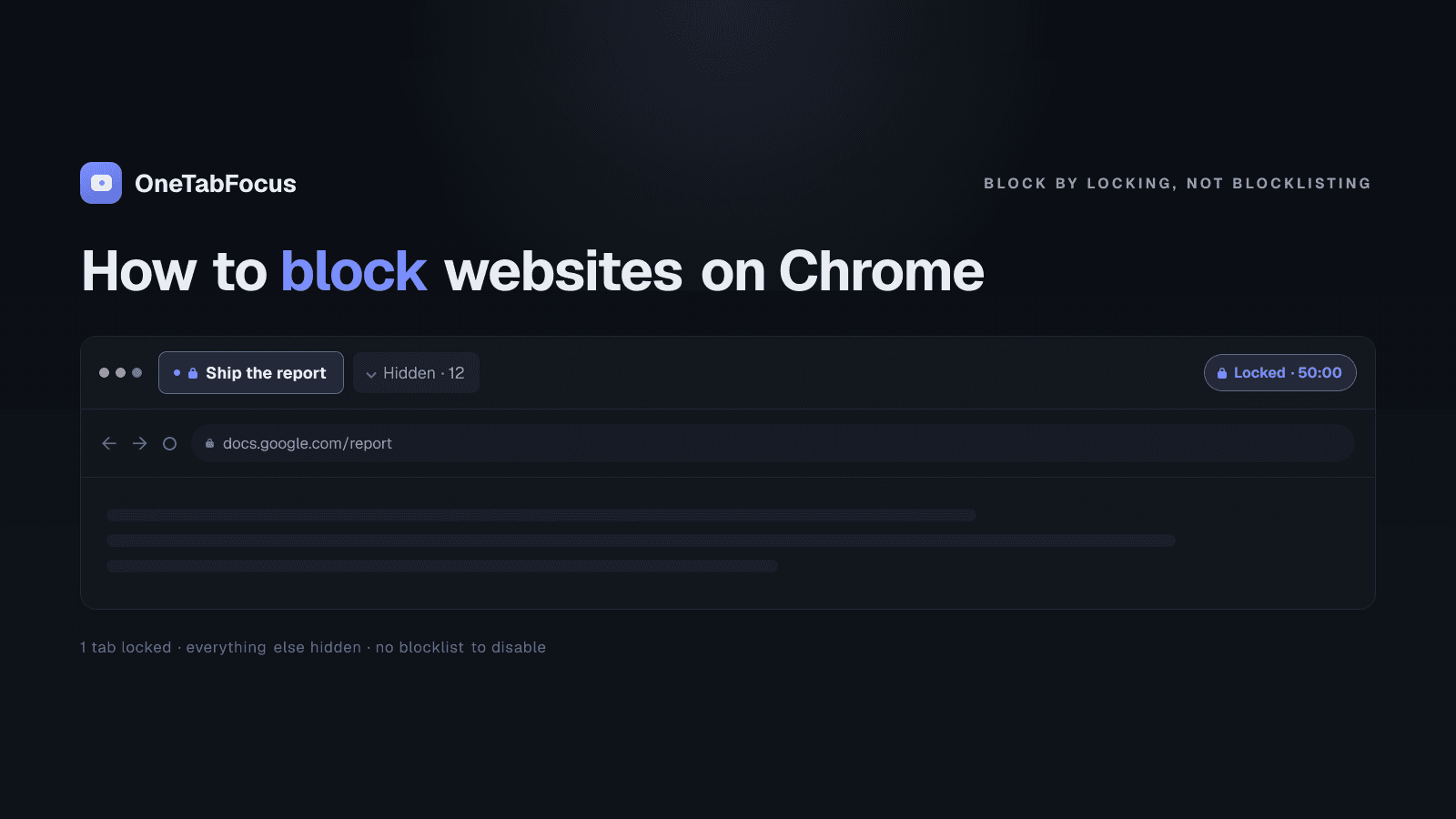
On this page
- Five ways to block websites on Chrome
- Method 1 — Use a Chrome extension (BlockSite or StayFocusd)
- Method 2 — Edit your computer's hosts file
- Method 3 — Use your router's URL filter
- Method 4 — Set a DNS filter
- Method 5 — Use OS-level parental controls
- When blocking isn't enough: the focus problem
- Lock the browser instead of blocking individual sites
- How OneTabFocus locks tabs without a blocklist
Five ways to block websites on Chrome
There are five methods that actually work in 2026, ordered from easiest to most permanent. Pick the one that matches who you are blocking the site for — yourself during a focus block, a child across all their devices, or every device on your home network. For the focus case specifically, a tab lock often beats any blocklist, and the second half of this post explains why.
Method 1 — Use a Chrome extension (BlockSite or StayFocusd)
The fastest option. Install a blocker extension from the Chrome Web Store, give it the list of sites you want blocked, and it intercepts every request to those domains in Chrome.
The two reliable choices:
- BlockSite — over 5 million users, 4.7-star rating. Custom blocklist, scheduling, password protection, optional category filtering (adult content), and a built-in Pomodoro mode. The catch since 2024: the free tier is capped at three blocked sites; the full feature set requires the paid tier.
- StayFocusd — free with no paid tier, over 800,000 active users, time-budget model (set a daily allowance per site, blocked once exhausted). The "Nuclear" mode blocks a list for a chosen duration with no override during the block.
Both install in 30 seconds. If your goal is blocking known distractor sites cheaply, this is the right method.
Honest limitation: a Chrome extension only blocks Chrome on the device where it's installed. Open Edge, Firefox, or the Chrome app on your phone and the block isn't there. And you can disable the extension whenever you want — which is why a tab lock is usually a better match for focus blocks where you actively don't want the option to undo it.
Method 2 — Edit your computer's hosts file
The hosts file is a system-level lookup that maps domain names to IP addresses. Redirecting a domain to 127.0.0.1 (your own machine) makes the site unreachable in every browser on that computer, not just Chrome.
- Windows: Open Notepad as Administrator, open
C:\Windows\System32\drivers\etc\hosts, add a line like127.0.0.1 twitter.comfor each site you want blocked, save. - macOS: In Terminal, run
sudo nano /etc/hosts, add the same lines, save with Ctrl-O then Ctrl-X. Flush DNS withsudo dscacheutil -flushcache.
One caveat that matters in 2026: modern Chrome uses DNS-over-HTTPS (DoH) by default, which can bypass the hosts file entirely because the DNS lookup happens encrypted to Cloudflare or Google rather than going through your OS. If your hosts-file edits don't seem to be taking effect, disable DoH in Chrome's security settings (chrome://settings/security → "Use secure DNS" off).
The hosts-file method survives Chrome reinstalls but only affects the one computer.
Method 3 — Use your router's URL filter
If you want the block to apply to every device on your home Wi-Fi — your laptop, your phone, your tablet, your TV — configure the block at the router level.
Steps depend on the router model, but the pattern is the same. Log into the router's admin page (usually http://192.168.1.1 or http://192.168.0.1, credentials on the back of the router or in the manual), find a section called "Parental Controls," "URL Filtering," or "Access Restrictions," add the domain to the block list, and apply changes.
This is the right method for parental control or for situations where you don't trust yourself to leave a software blocker in place. The disadvantage is that the block is on your home network only — a phone on cellular data, or a laptop at a coffee shop, won't be affected.
Method 4 — Set a DNS filter
A DNS filter blocks entire categories of sites by intercepting DNS lookups at the resolver level. The two free options worth knowing about:
- Cloudflare for Families — point your router or device DNS at
1.1.1.3for malware blocking, or1.1.1.2for malware-only without the family-content category. Free, fast, no signup. - OpenDNS FamilyShield — point DNS at
208.67.222.123. Free, blocks adult and proxy content.
A DNS filter is the strongest option for blocking categories (adult content, malware, gambling) across every device on a network. It is less useful for blocking specific individual sites unless you upgrade to a paid DNS-filter service that supports custom blocklists.
Method 5 — Use OS-level parental controls
Every major operating system now has built-in website-blocking under the parental-control surface, designed for kids' devices but usable by anyone.
- macOS — System Settings → Screen Time → Content & Privacy → Web Content. Choose "Limit Adult Websites" or "Allowed Websites Only" and add specific domains.
- Windows 11 — Microsoft Family Safety, web filter for child accounts.
- iOS — Settings → Screen Time → Content & Privacy Restrictions → Web Content.
- Android — Google Family Link, restricts web content on the child's account. Google's enterprise documentation on the allow/block list covers managed-device options for school and work deployments.
These controls survive browser changes and apply to every browser on the device, not just Chrome. They are the right method for kids and for company-managed devices.
When blocking isn't enough: the focus problem
Most of the people searching "how to block websites on Chrome" are trying to fix a focus problem, not a parental-control problem. For that audience, the methods above all share three failure modes.
First, a blocker you can disable will be disabled when you want to switch. The whole point of installing a blocker is to make the choice harder; the moment you give yourself an override button (the BlockSite settings page, the StayFocusd off switch, the hosts-file edit), you've handed the choice back to the version of yourself you don't trust. A 2017 University of Texas study found that the mere presence of a smartphone on the desk — silent, face-down, untouched — reduced measurable cognitive performance because part of attention was spent on the active suppression of thinking about it. Open browser tabs that you've theoretically blocked work the same way: the suppression cost is still there.
Second, the distractions that actually wreck a focus block are usually your own work tabs. Linear, Notion, Slack, your draft, your design file — none of them are on anyone's blocklist, because they're the work. But the moment you jump from your code editor to Linear "just to check," you've paid the 23-minute, 15-second recovery cost Gloria Mark's research at UC Irvine has measured for a single interruption. A Twitter blocker doesn't help with that.
Third, blocking individual sites scales badly. There are too many possible distractor sites to enumerate them all, and the moment a new one shows up — a Substack you like, a new subreddit, an interesting Hacker News thread — the blocklist is silently out of date.
Lock the browser instead of blocking individual sites
The blocklist model controls a list of sites. The lock model controls a block of time. For most focus use cases, the second model is the better fit.
A browser lock is a Chrome extension that locks the browser to your task tab — plus a small set of reference tabs you actually need — for a chosen duration. Every other tab is collapsed into a single grey "Hidden" chip in the tab strip and is not reachable for the duration of the lock. There is no list to maintain, no override button during the lock, and the distraction surface area goes to zero whether the distractor is Twitter or your own Linear tab.
The model isn't strictly better than blocking. For parental controls and for category blocking across a household, the router and DNS methods above are still right. But for the "I need to ship this in the next 75 minutes" case, the lock is the tool.
How OneTabFocus locks tabs without a blocklist
OneTabFocus is a Chrome extension that locks the browser to one tab — or a small set of reference tabs — for a chosen duration.
OneTabFocus collapses every non-focus tab into a single 'Hidden' chip. Tabs are not closed: audio keeps playing, drafts are preserved, scroll position is preserved.
There is no blocklist to configure. You start a session, pick a duration, name the task, and the browser holds the lock for that duration. When the session ends, the original tab groups are restored exactly as they were. For more on the mechanics, see the tab lock page or the Chrome focus mode page. Otherwise, install OneTabFocus and run one 75-minute lock on whatever you have been trying to ship.
FAQ
How do I block a website on Chrome without an extension?
Two main options. Edit your computer's hosts file to redirect the site to 127.0.0.1 (Windows path: C:\Windows\System32\drivers\etc\hosts; macOS path: /etc/hosts). Or configure your router's URL filter under access restrictions — that blocks the site across every device on your network, not just Chrome on one machine.
What is the best free Chrome extension to block websites?
StayFocusd is the strongest free option — no paid tier, time-budget model, large install base. BlockSite is more polished but its free tier is capped at three blocked sites since 2024, which is too tight for most focus uses. If your problem is general tab-switching rather than named sites, install a tab lock like OneTabFocus instead.
Can I block a website permanently on Chrome?
Yes, with a router URL filter or a DNS filter like Cloudflare for Families (1.1.1.3) — both apply across devices and survive Chrome reinstalls. Extension-based blockers can always be disabled by the same user who installed them, so they are permanent only by self-discipline. Hosts-file edits persist but require admin access to revert.
Is BlockSite or StayFocusd better?
StayFocusd if you want a free, set-it-and-forget-it time budget on a few named distractors — Twitter, Reddit, YouTube. BlockSite if you want category blocking, scheduled blocks, password protection, and cross-device sync, and you are willing to pay for the full feature set. Neither helps when the distraction is your own work tabs during a focus block.