
How to Stay Focused Working From Home (2026)
A practical setup to stay focused working from home — dedicated workspace, office hours, silenced notifications, and the browser-level lock WFH advice misses.
 CollinFounder, OneTabFocus7 min read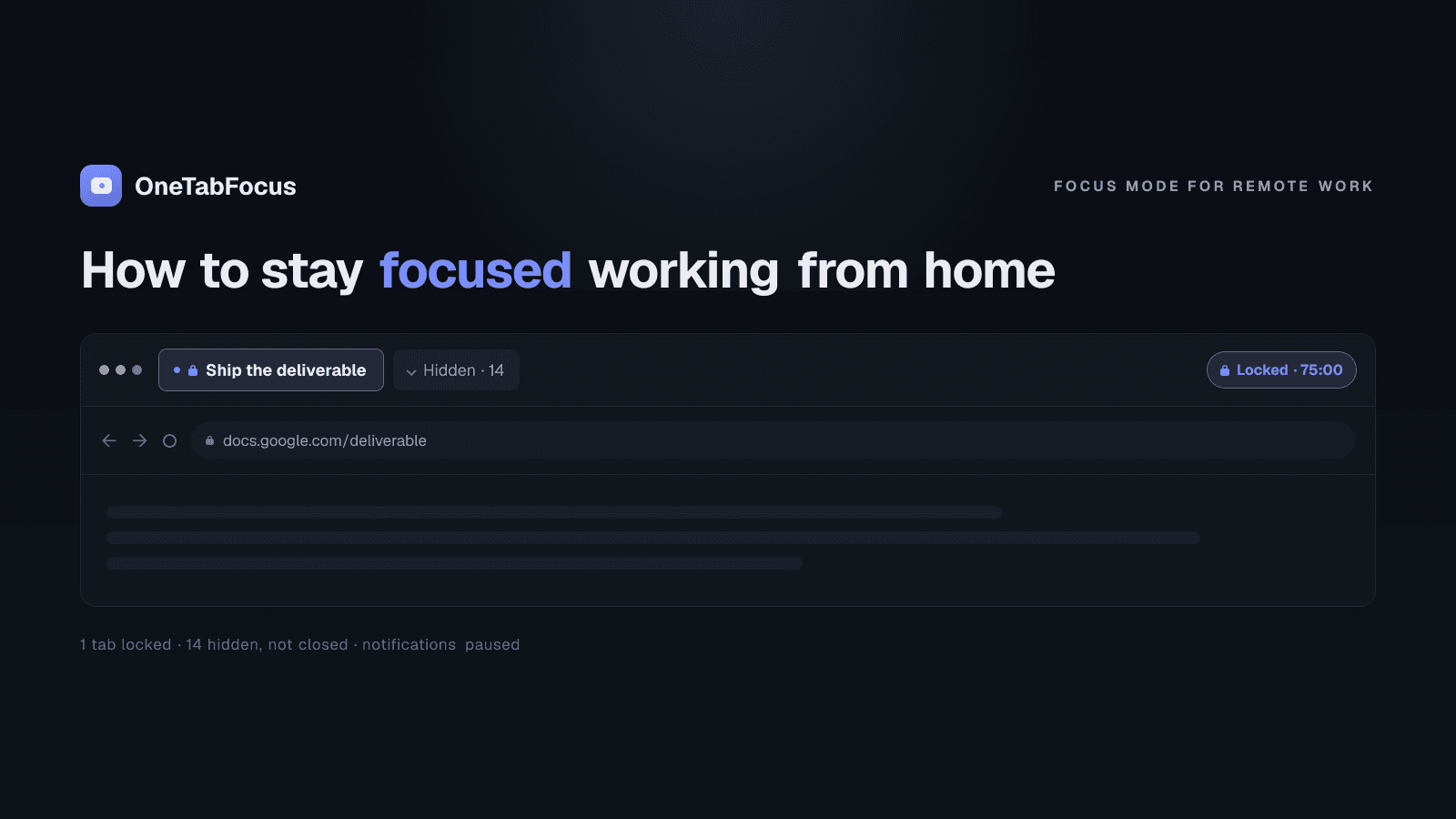
On this page
- Why focus at home is hard (in 2026 specifically)
- Build the physical setup that costs you nothing to enter
- Dedicated workspace
- Office hours and the start/end ritual
- Hardware that supports the work
- Build the digital setup that holds for the workday
- Calendar blocking
- Notification silence (OS DnD, Slack snooze, batched email)
- Browser lock for deep-work blocks
- The browser is where remote work actually happens
- How OneTabFocus helps the WFH workday
Why focus at home is hard (in 2026 specifically)
Working from home was supposed to fix the focus problem. No coworkers tapping you on the shoulder, no open-plan office, no commute eating the morning. In practice, the office distractions got replaced by a different set, the boundary between work and not-work eroded for almost everyone, and the real fix turned out to be a Chrome focus mode at the browser level — the part most WFH advice still skips.
Buffer's State of Remote Work survey — the longest-running data series on this — finds the top remote-work struggles are staying home too often (21%), loneliness (15%), working across time zones (14%), staying motivated (11%), and not being able to unplug (11%). The unplug problem is the largest of the focus-adjacent ones: 81% of remote workers check work email outside work hours, 63% on weekends. The standard advice — "designate a workspace," "set office hours" — addresses the boundary part. The focus-during-the-block part is a different problem.
That problem is mostly digital. Microsoft's 2024 Work Trend Index found knowledge workers are interrupted on average every two minutes during core hours — chat, email, and self-initiated tab switches, not coworkers walking by. The interruption layer followed people home. A proper Chrome focus mode is the part of the WFH setup that most posts on this topic don't address — and the part that closes the gap between "I'm working from home" and "I shipped real work today."
Build the physical setup that costs you nothing to enter
The physical layer is the easiest to get right because it's mostly one-time. The goal is a setup that you can start working at without any decisions or activation energy.
Dedicated workspace
Same chair, same window, same light, every day. A door if you can manage it, or noise-cancelling headphones if you can't. The workspace doesn't need to be impressive; it needs to be repeatable. Variable spaces produce variable focus.
Office hours and the start/end ritual
Pick a start time and an end time, and treat them like the office hours of a real office. The Buffer data on the 81% checking email outside hours is the failure mode this fixes — if you have no defined end of day, work fills every hour. Use a short start ritual (a coffee, a walk around the block, opening your task list) and a short end ritual (closing the laptop lid, writing tomorrow's first task, leaving the workspace).
Hardware that supports the work
A second monitor, a good chair, an external keyboard, decent audio. The remote-work tax that most people pay quietly is on bad hardware. The total cost of upgrading once is small compared to the daily cost of working on a 13-inch screen in a kitchen chair.
Build the digital setup that holds for the workday
The digital layer is where the focus is actually won or lost. Three sub-tactics matter.
Calendar blocking
Block 60- to 90-minute deep-work sessions on your calendar each morning, before any meetings drop in. Treat them as real meetings with yourself. The block goes on the shared calendar so colleagues can see you're busy. The discipline of writing it down in advance is what makes it survive contact with the day.
Notification silence (OS DnD, Slack snooze, batched email)
For the duration of the block: macOS or Windows do-not-disturb on, Slack snooze ("Pause notifications" → for the block length), email closed. Microsoft's research above measured a 2-minute average interruption interval in core hours — most of that is chat and email pings, and silencing them for 75 minutes drops the frequency by an order of magnitude.
Browser lock for deep-work blocks
The browser is where remote work happens and where the distractions live. Calendar blocking and notification silence both fail if a Chrome tab is one keystroke away. The fix is a tool that locks the browser to your task tab (plus a small set of reference tabs) for the duration of the block, with no override during the block. This is the layer most WFH advice posts leave out and the one that most determines whether a block actually holds.
The browser is where remote work actually happens
Almost every modern WFH knowledge-work tool is a browser tab — Linear, Notion, Figma, Slack web, Gmail, the design system docs, the company wiki, the dashboard, the spec you're working from. The work and the distraction layer share the same surface, and "minimise distractions" advice from a 2017 Harvard Business Review article on how to stay focused at home understandably doesn't address that — the problem wasn't fully formed yet in 2017.
It is now. Closing your email client doesn't help if Gmail is one of your tabs. Silencing Slack doesn't help if the Slack web app is still in the tab strip. A blocklist of distracting sites doesn't help when the distraction is your own Linear tab. The intervention has to happen at the browser level — a deep-work mode that holds the browser to your task tab and a small set of reference tabs for a defined duration. That is what the third layer of the WFH focus stack actually is.
How OneTabFocus helps the WFH workday
OneTabFocus collapses every non-focus tab into a single 'Hidden' chip. Tabs are not closed: audio keeps playing, drafts are preserved, scroll position is preserved.
For a remote workday, the practical pattern is one or two 60- to 90-minute blocks defended with OneTabFocus, each anchored to a specific shipping deliverable. Your Linear and Notion tabs stay reachable as reference tabs in the focus group; the other 18 tabs in your strip collapse into a single grey "Hidden" chip until the block ends. The standard physical and schedule layers run alongside. Install OneTabFocus and try one 75-minute block tomorrow morning before your first meeting.
FAQ
How do I stay focused when working from home?
Set up the three layers — physical, schedule, and browser. A dedicated workspace with a door, office hours you keep, silenced notifications, and a browser lock that holds your task tab for the duration of a deep-work block. The first two layers are well-covered by standard advice; the third is what most posts skip and what closes the gap.
What's the best app for focus at home?
It depends on the specific problem. For named site distractors, StayFocusd or BlockSite. For Pomodoro structure, Focus To-Do or Marinara. For the actual focus block where you need your reference tabs but nothing else, OneTabFocus, which locks the browser to your task tab plus a small set of reference tabs without needing a blocklist.
How do I avoid distractions working from home?
Reduce the surface area, not the temptation. A door beats willpower; a calendar block beats good intentions; silenced notifications beat ignoring them; a browser lock beats a blocklist you can disable. Each layer addresses a different distractor: family interruptions, schedule erosion, chat pings, and tab-switching during work. Use all four together for one to two blocks per day.
How long should I focus before taking a break?
Most knowledge workers can hold one 60- to 90-minute focused block, take a real 15- to 30-minute break, then run a second block. Going beyond 90 minutes without recovery degrades the output. If you are new to defended blocks, start at 45 minutes and add ten minutes a week until you reach 90.